Document Optimization
Mastering PDF Compression: How to Shrink Files by 90% Instantly
Published April 2026 • 8 min read
We’ve all been there: You’ve finished your perfect resume, portfolio, or legal document, only to find the file size is 15MB. You try to upload it to a government portal or attach it to an email, and you get the dreaded error: "File size too large."
In this guide, we reveal the professional secrets to reducing PDF size without turning your images into a blurry mess. Best of all, we'll show you how to do it using GigaConverterPDF—the web's most powerful browser-side compression engine.
Why are PDF Files So Large?
To fix a problem, you must understand it. Most PDFs are large because of three "hidden" factors:
- High-Resolution Bloat: Images saved at 300 DPI or higher intended for professional printing.
- Embedded Font Libraries: Carrying entire character sets for fonts you only used once.
- Metadata Overhead: Hidden data from software like Adobe InDesign or Canva that adds megabytes of "ghost" weight.
The "Giga" Method: Structural Optimization
While many basic online tools simply lower the quality of your photos, GigaConverterPDF uses a method called Object Stream Linearization. This technical process re-indexes the internal map of the PDF. By reorganizing how data objects are stored, we can often achieve a 40% reduction before even touching the image quality.
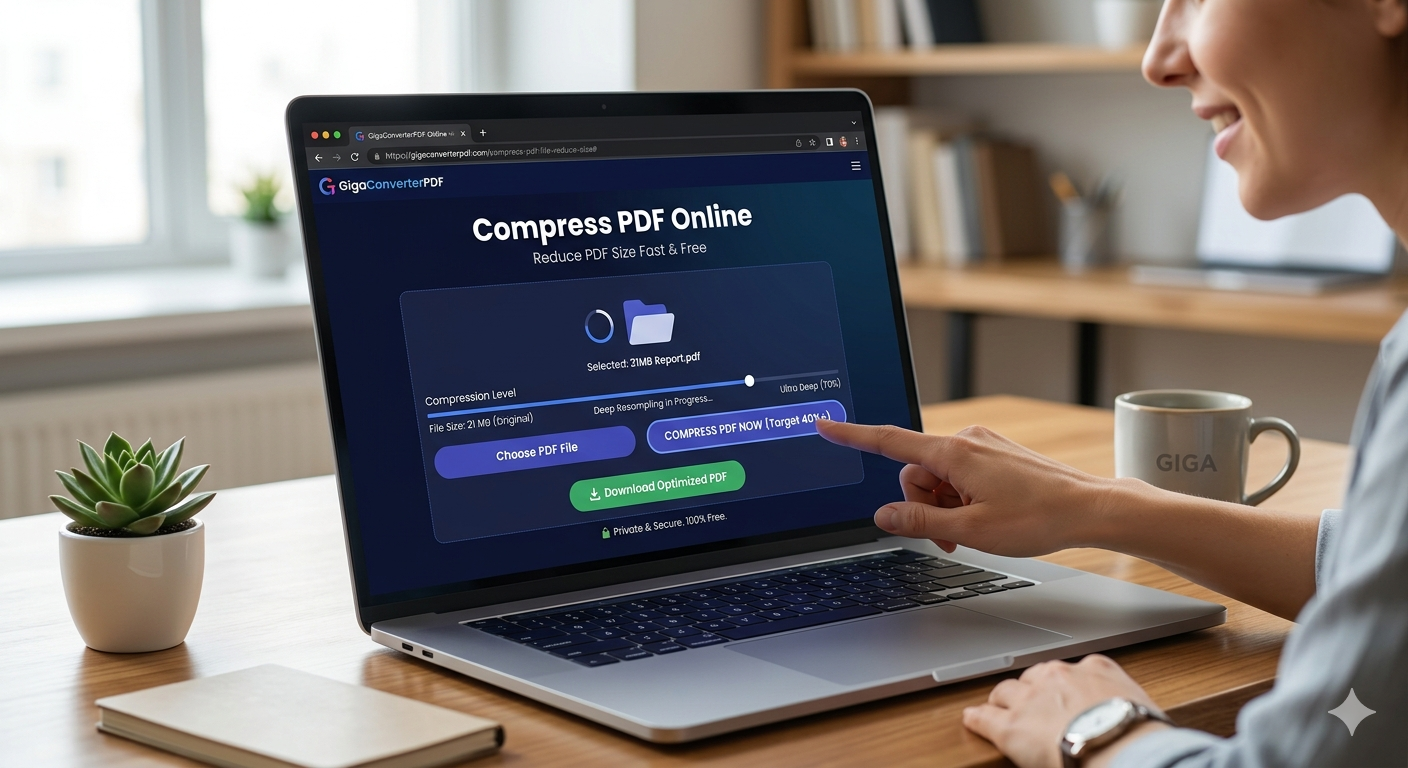
Need to Shrink a PDF Right Now?
Use our Ultra-Deep Compression tool to get your file under 200kb in seconds.
Compress PDF for FreeTop 5 Benefits of Small PDF Files
Why should you care about your file size? Aside from avoiding upload errors, there are major advantages to keeping your documents light:
- Faster Email Delivery: Large attachments often get flagged by spam filters or bounce back entirely.
- SEO Rankings: Search engines favor fast-loading PDF assets. A 200kb PDF ranks higher than a 5MB one.
- Mobile Accessibility: Users on 4G/5G networks appreciate files that don't eat up their data plan.
- Storage Savings: Save gigabytes of space on your Google Drive, Dropbox, or iCloud.
- Professionalism: Sending a lightweight, fast-opening file shows you respect the recipient's time and technical resources.
Lossy vs. Lossless Compression: What's the Difference?
When you use an online PDF resizer, you usually have two choices. Lossless compression removes redundant data without changing a single pixel. Lossy compression selectively reduces the DPI of images. At GigaConverterPDF, we combine both. Our "Smart Mode" identifies which parts of the document need to remain sharp (like text and signatures) and which parts can be optimized (like background images).
Step-by-Step: How to Use GigaConverterPDF
Shrinking your document is simple. Follow these three steps to achieve maximum results:
Step 1: Upload. Drag your file into our high-contrast upload zone. Our tool immediately begins a structural scan.
Step 2: Choose Your Level. Select "Deep Compress" for a balanced result or "Ultra Shrink" if you need to hit a specific limit like 200kb.
Step 3: Download. Our engine processes the file in your browser's RAM (private and secure) and provides a download link instantly.
Final Thoughts: Document Freedom
Don't let file size limits slow down your career or your business. By utilizing professional-grade tools like GigaConverterPDF, you take control of your digital footprint. Start optimizing your archives today and experience the speed of the modern web.
© 2026 GigaConverterPDF | Visit Tool
Comments (0)
Leave a Comment